Brighter Futures Logo

Get A Free Email Address

Get A Free Email Address

To create an account on Early Ed Connect and apply for child care assistance or On My Way Pre-K, you first need a working email address. If you do not have an email address, you can follow the steps below to set up a free email account.

Your email address will be used to set up your Early Ed Connect account, inform you when your application is completed, and contact you regarding next steps in your application process.

Create A Free Email Account On Your Android or iPhone (iOS) Device

If you have an Android or iPhone device, you can create a new Gmail account using the Settings app. This way you can bypass Google asking you for your phone number. To set up a free account, follow the steps below.

1. Go to Settings on your mobile device.

2. Find the Account menu (or Passwords and Accounts, depending on your system device).
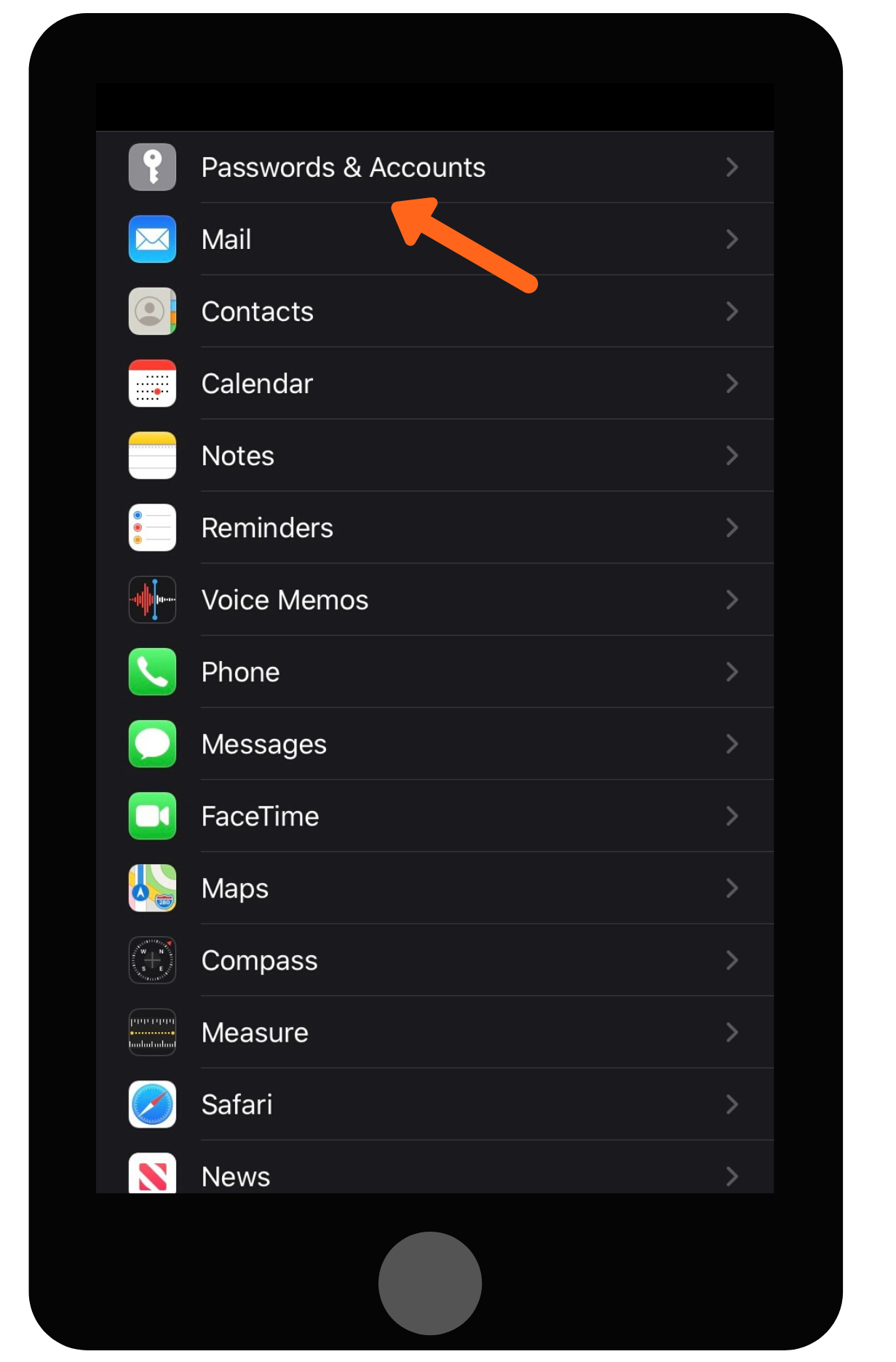
Screenshot of iPhone Settings menu with an orange arrow pointing to Passwords and Accounts at the top of the list.

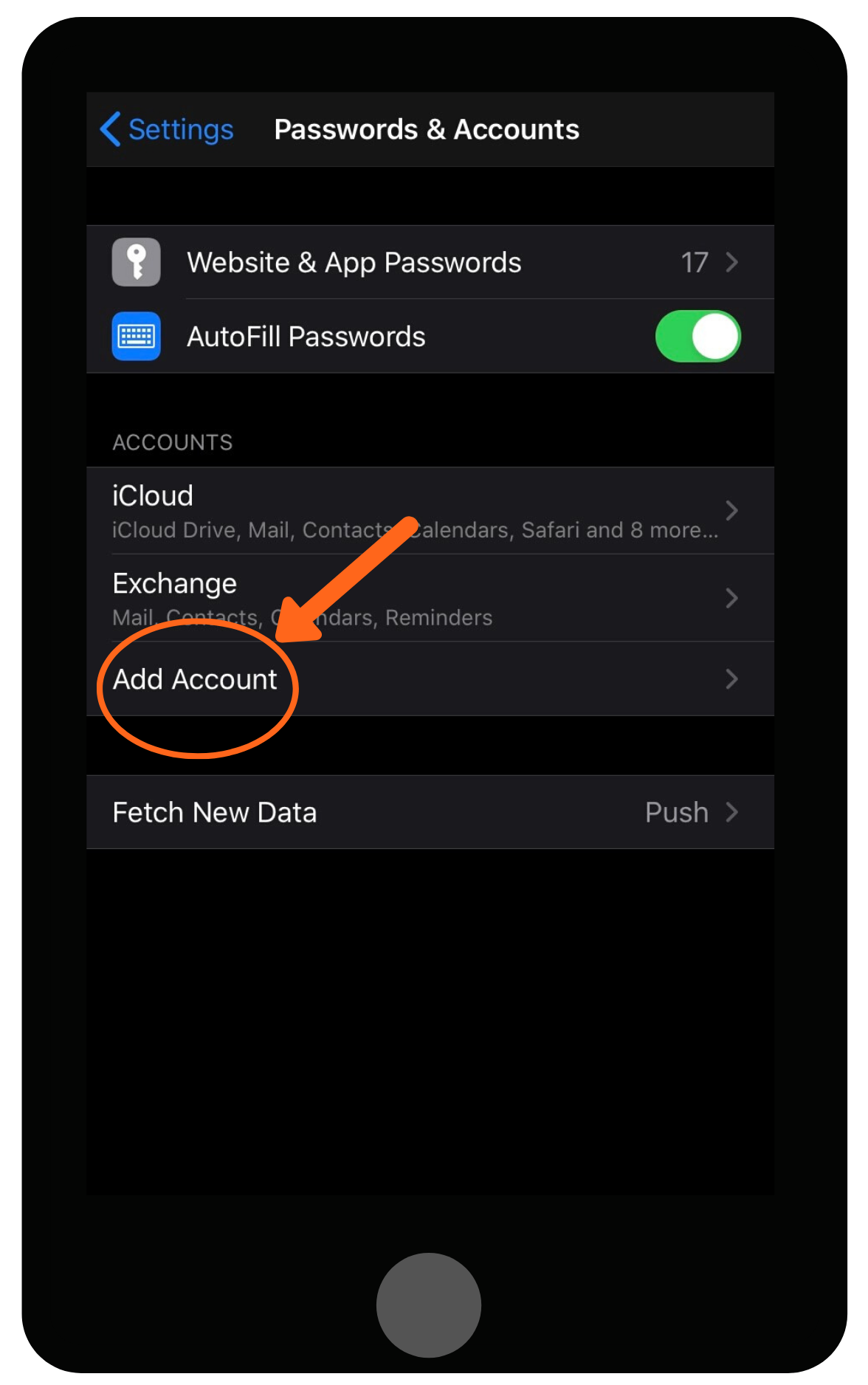
3. Click Add Account.

Screenshot of iPhone Passwords and Accounts settings with an orange arrow and circle highlighting the Add Account option.

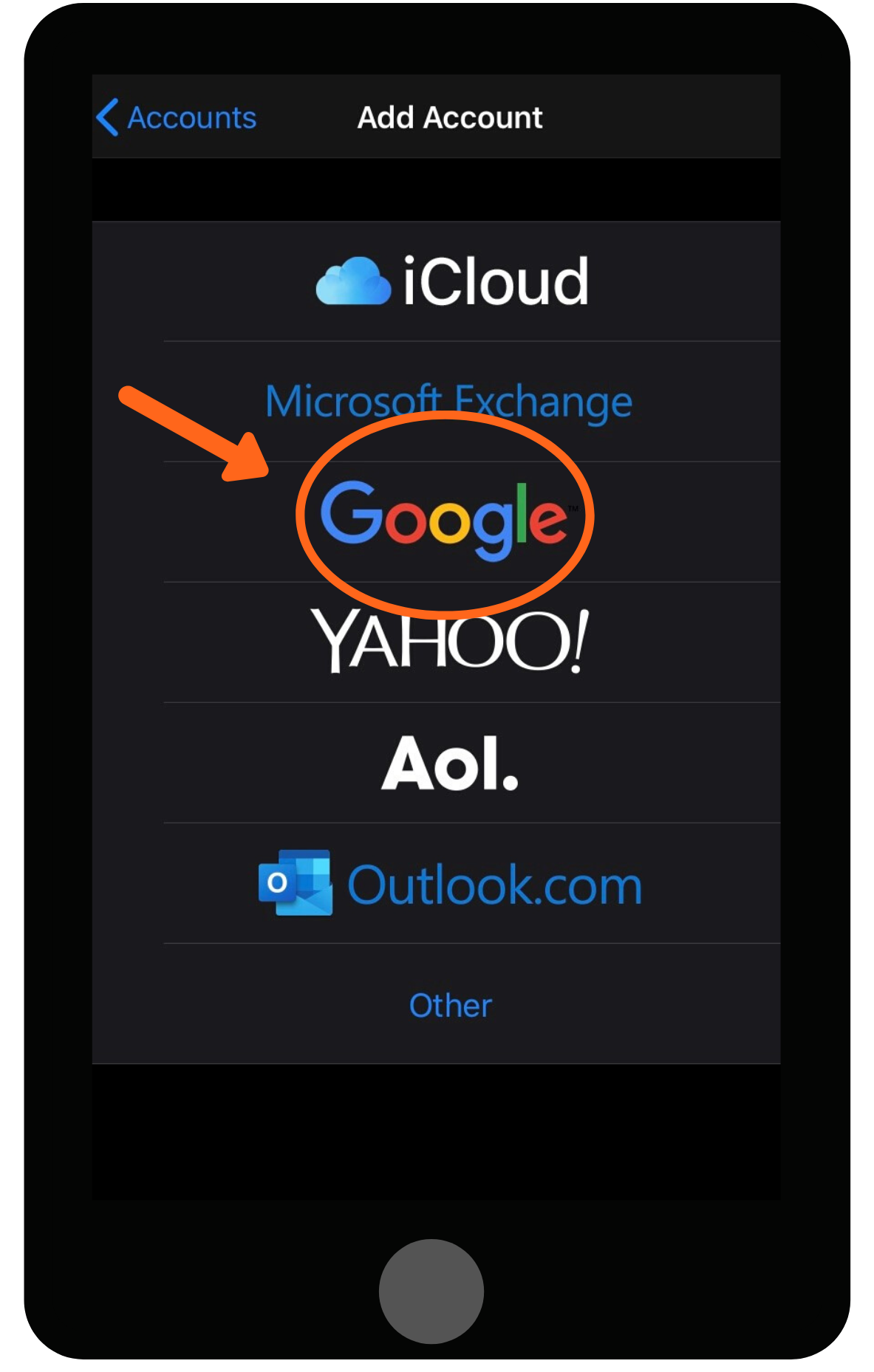
4. Choose Google.

Screenshot of the iPhone Add Account screen with Google circled and marked by an arrow among email provider options.

5. Click Create Account on the bottom-left of the screen.
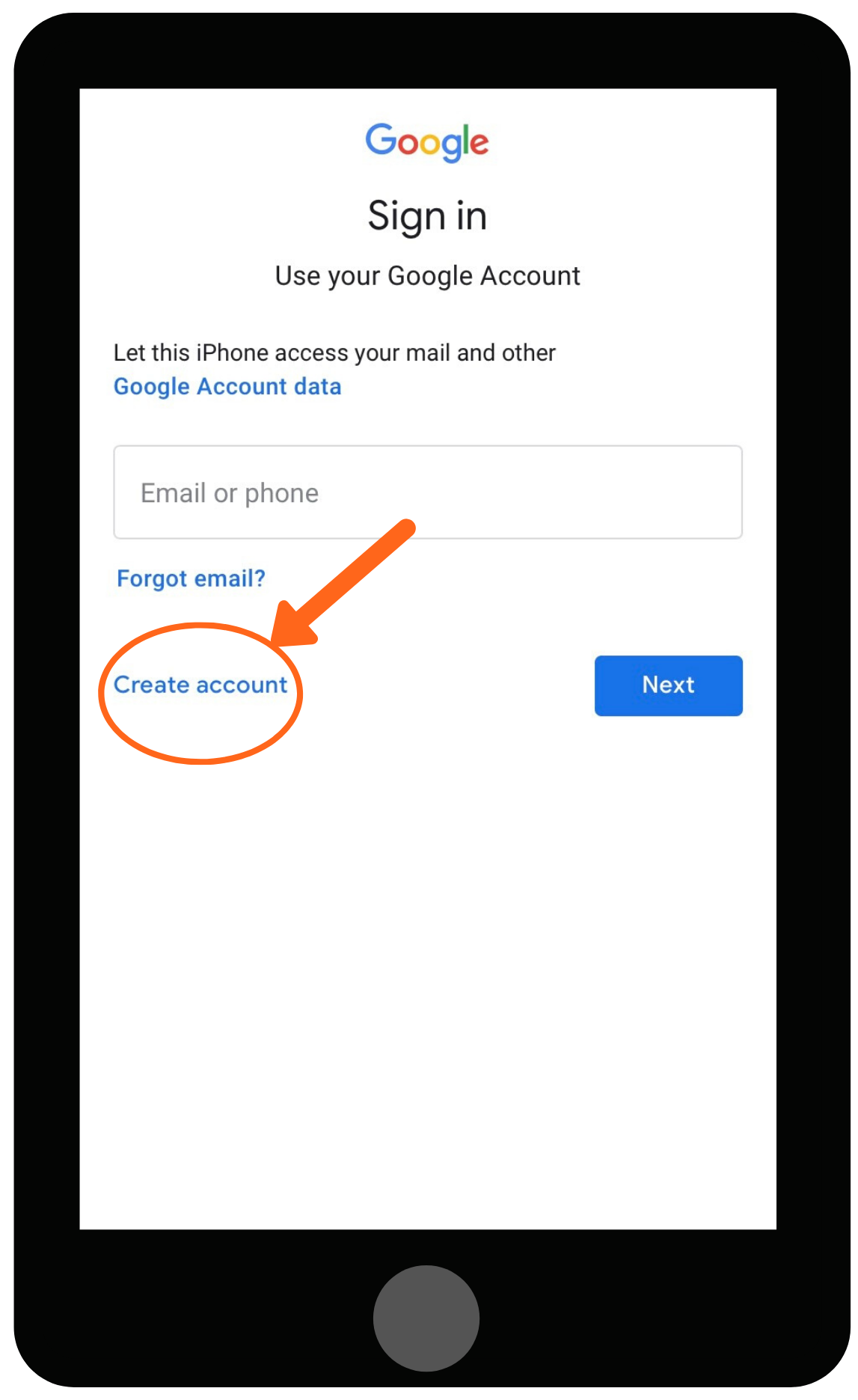
Screenshot of the Google sign-in screen on a phone, with an orange arrow and circle highlighting the Create account link.

6. Type your first and last name. Click Next.
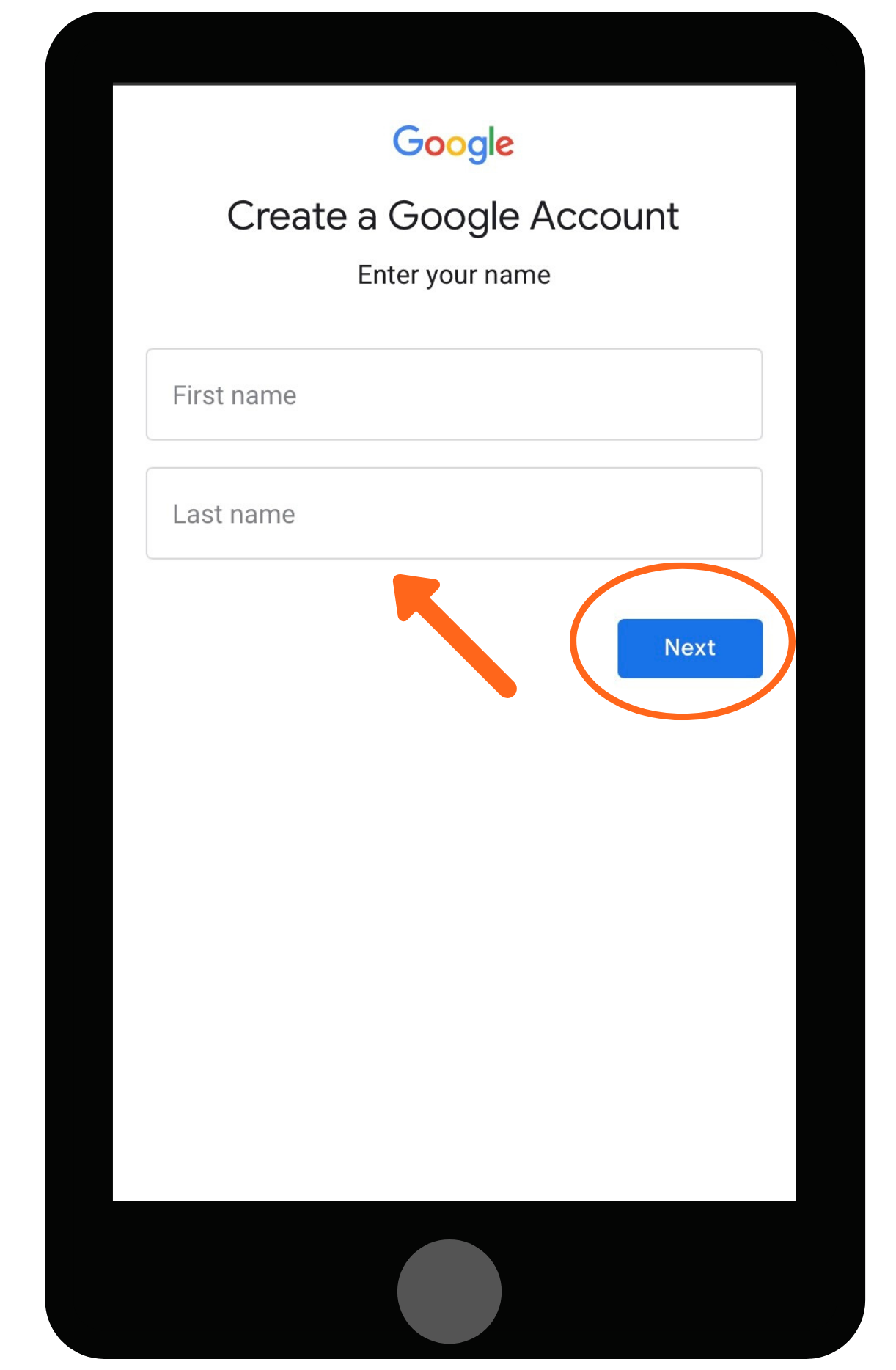
Screenshot of the Create a Google Account screen on a phone, with an arrow pointing to the name fields and the Next button circled.

7. Add your birth date and gender. Click Next.
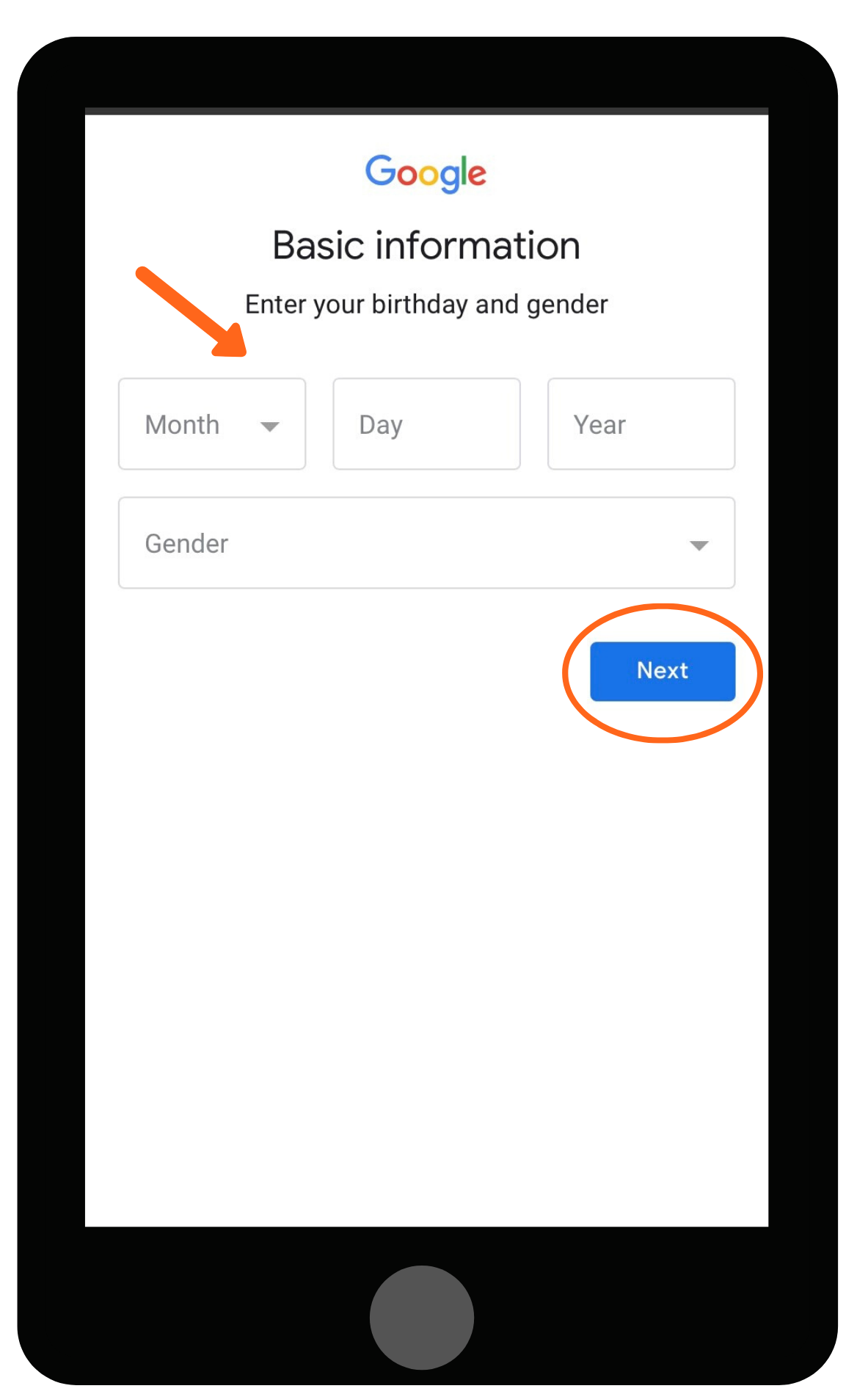
Screenshot of a Google sign-up screen on a phone asking for birthday and gender, with arrows pointing to the fields and Next button.

8. Create an email address for signing into your account. Click Next.
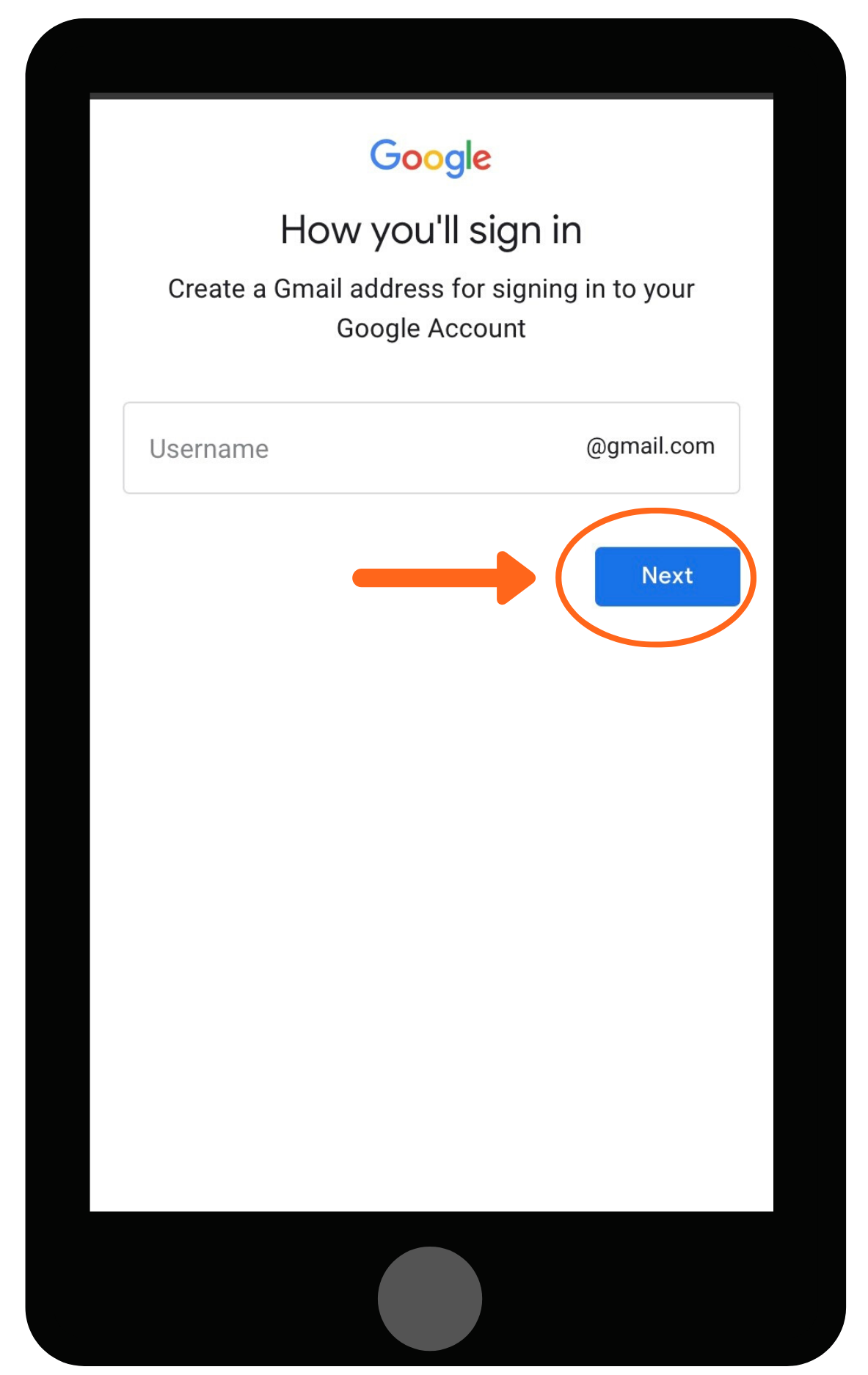
Screenshot of the Google sign-up screen on a phone, asking to create a Gmail username, with an arrow pointing to the Next button.

9. Create a password (Use a mix of letters, numbers, and symbols).
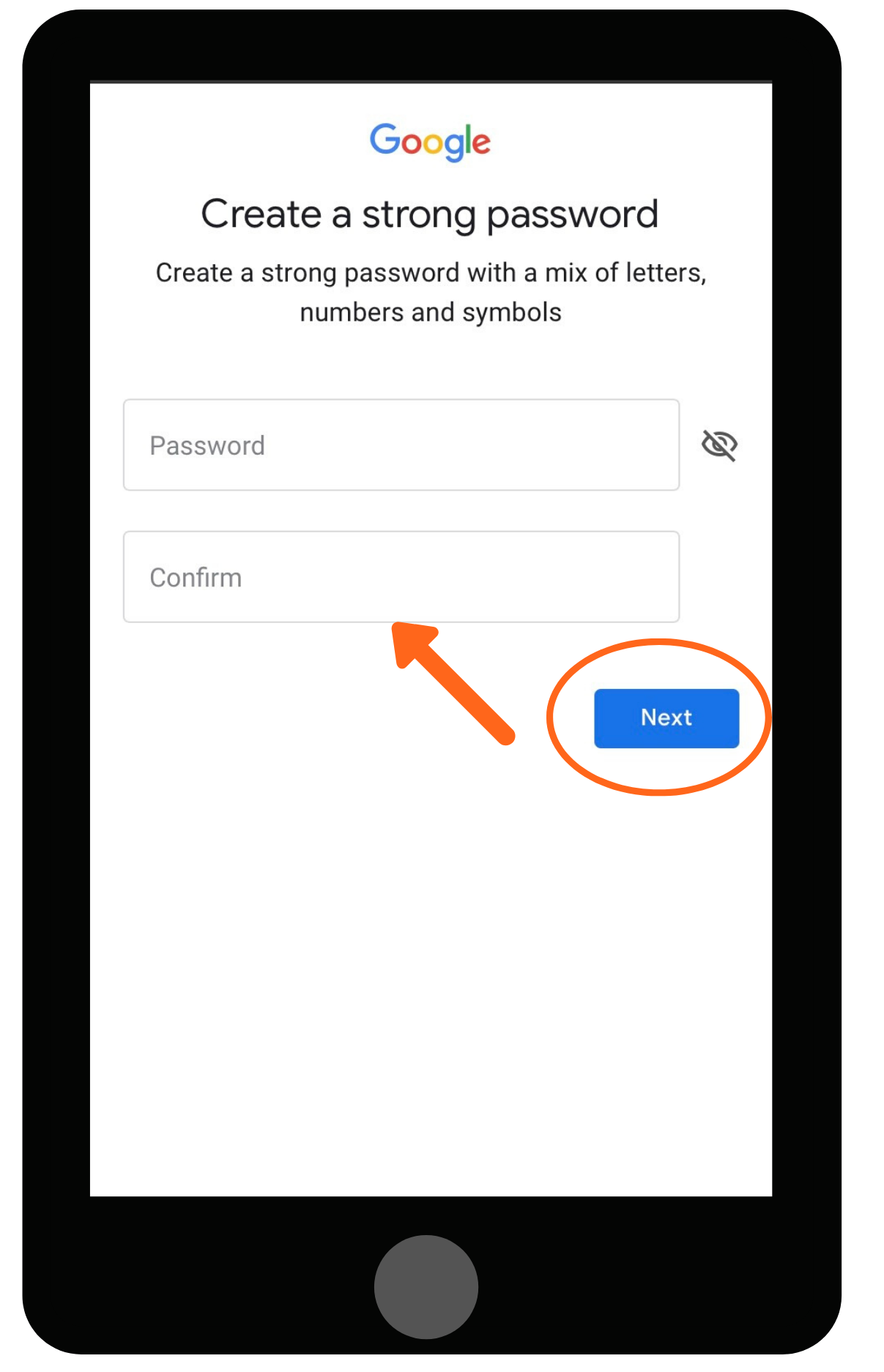
Screenshot of the Google create a strong password screen on a phone, with an arrow to the Confirm field and the Next button circled.

10. Add a phone number for your account or click Skip at the bottom-left of the screen.
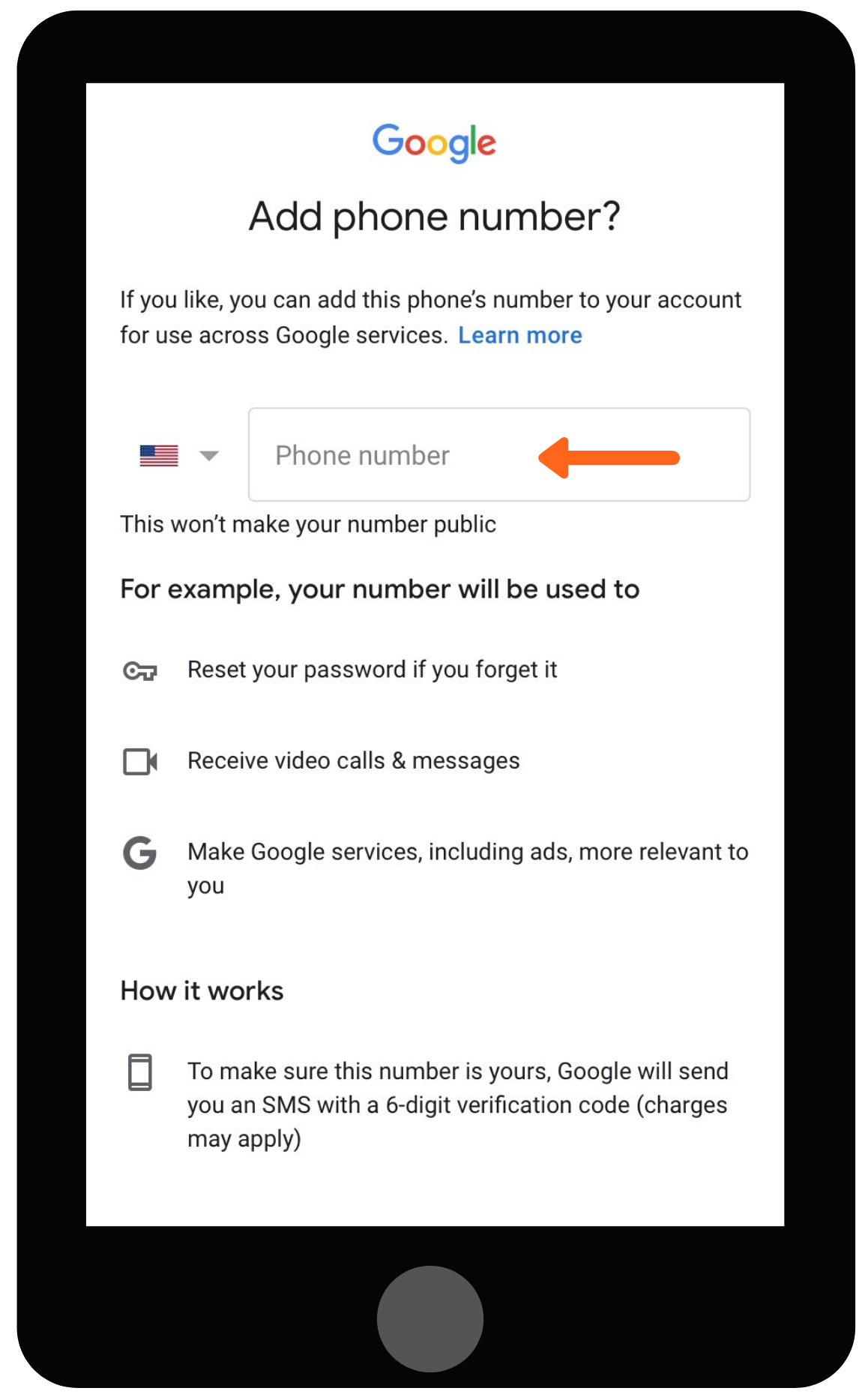
Screenshot of a Google Add phone number screen on a phone, with an arrow pointing to the phone number field.

11. Review your account information. Click Next.
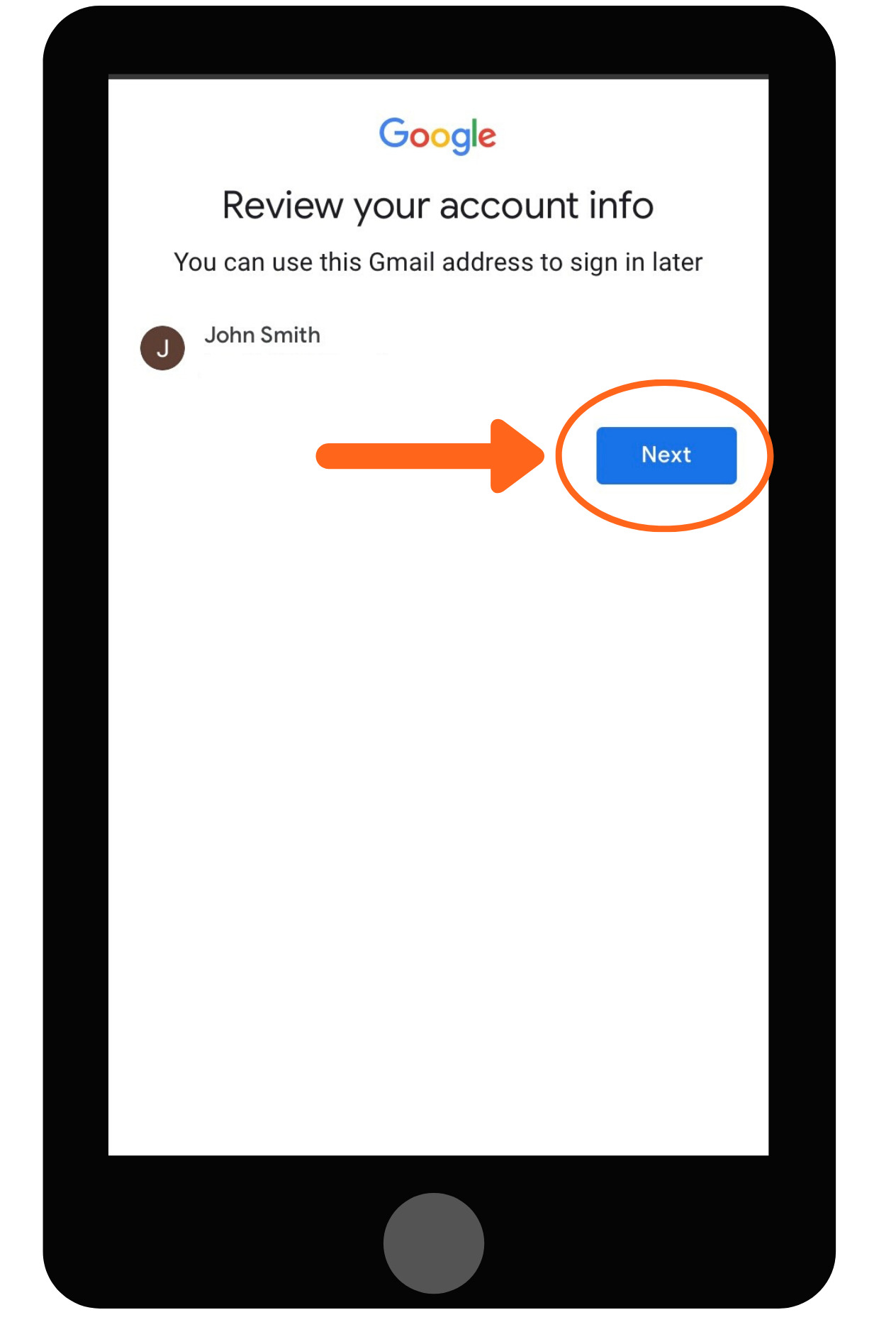
Screenshot of the Google Review your account info screen on a phone, with an orange arrow pointing to the Next button.

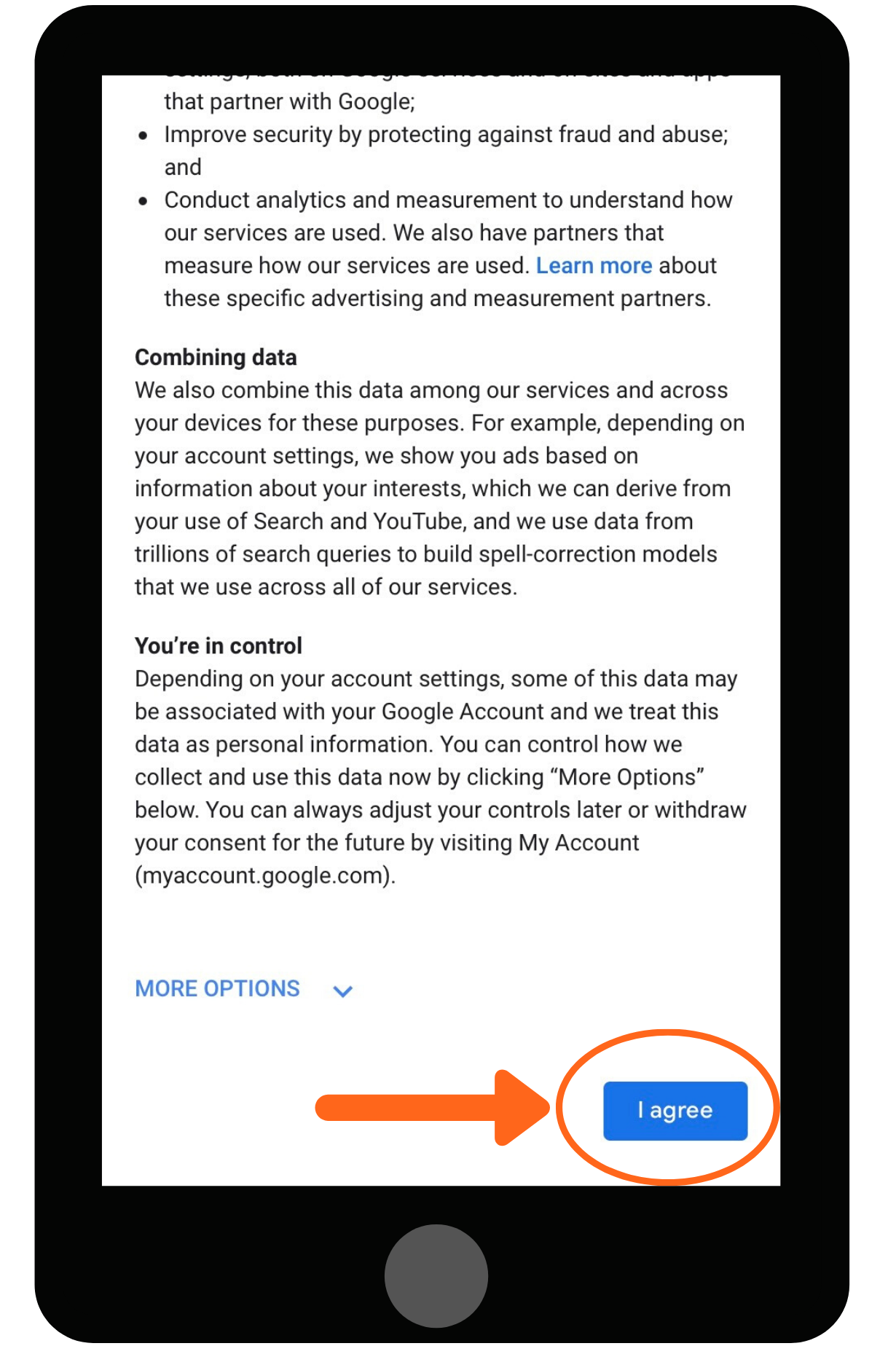
12. Read the Privacy and Terms. Click I Agree.
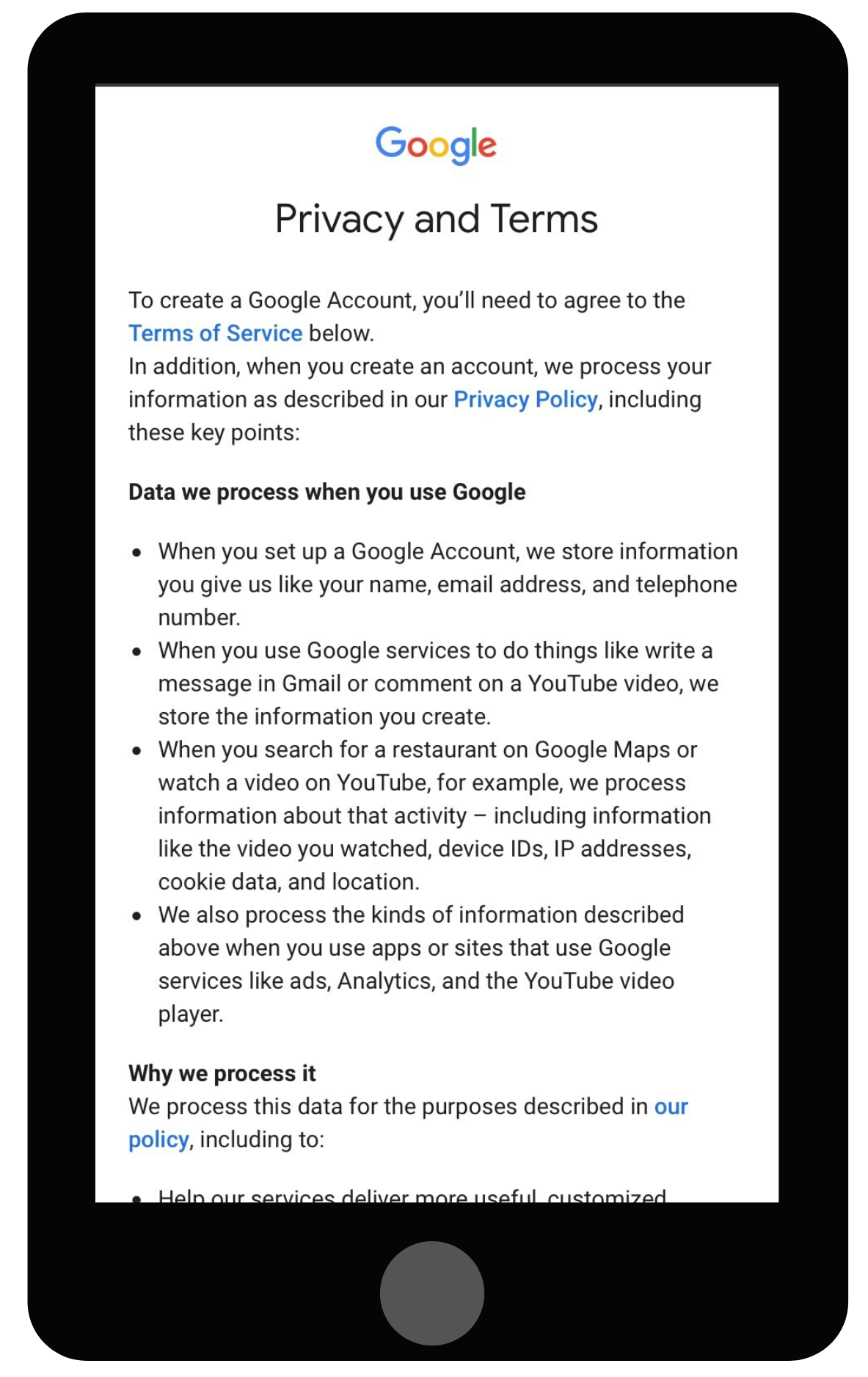
Screenshot on a phone of the Google Privacy and Terms page explaining what data Google collects when you create an account.
Screenshot of a Google privacy terms screen on a phone, with an orange arrow and circle highlighting the I agree button.

13. Your new account will be added to your device. Click Save on the top-right of the screen.
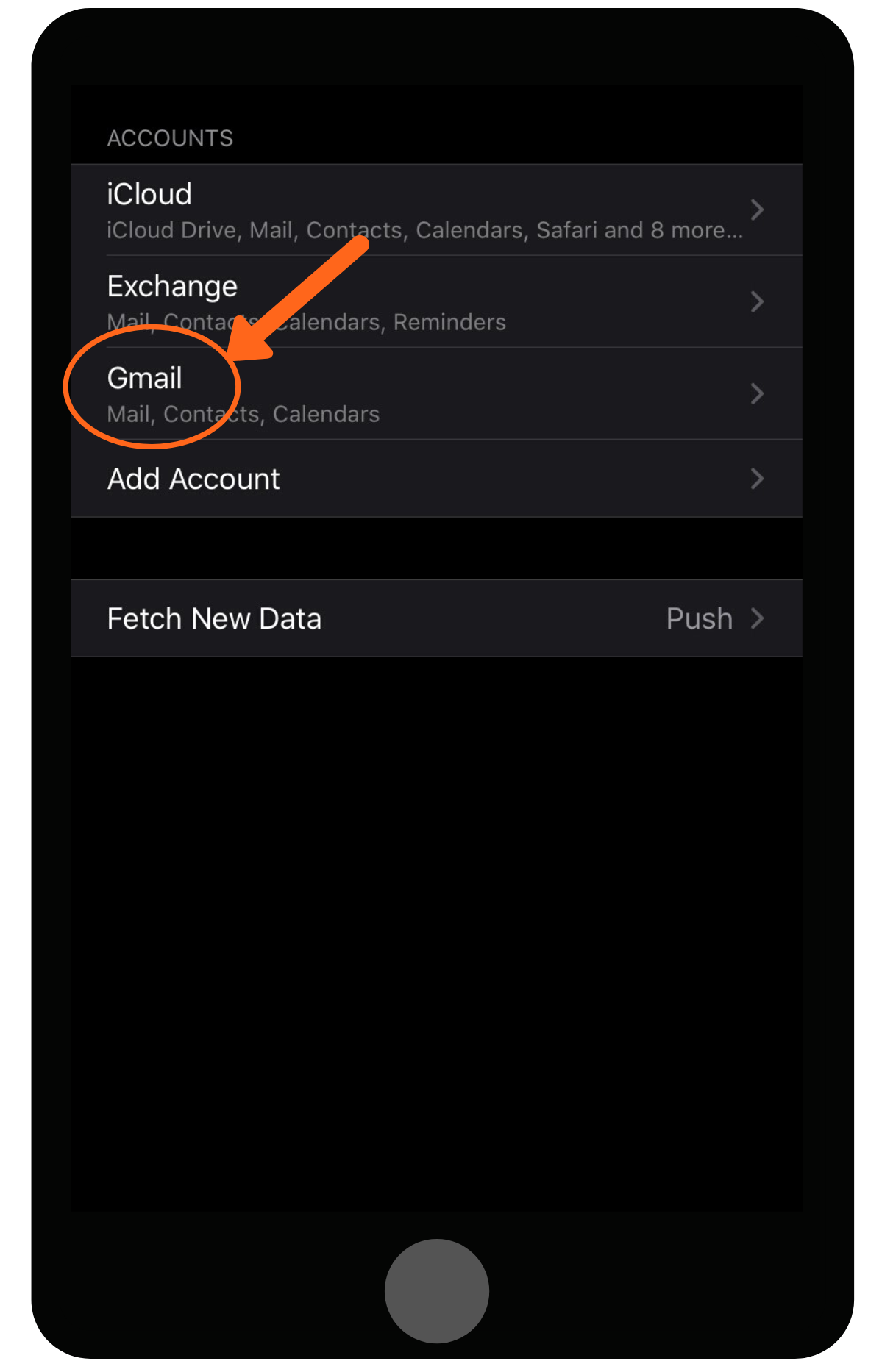
Screenshot of iPhone account settings with an orange arrow and circle highlighting the Gmail account option.

14. Click on the Mailbox app on your device or go to gmail.com and sign in using your new account information.

      Related Articles