Update Your Profile

You can update your Early Ed Connect profile at any time. Make sure your profile is always up to date. Your local eligibility office uses profile details to contact you. To update your profile or password, follow the guide below.

Step-by-step Directions to Update Your Profile
To update your Early Ed Connect profile from a mobile device, follow the steps below.
1. Go to EarlyEdConnect.FSSA.in.gov in any browser.
2. Click on the green Sign In button in the middle of the screen and enter your email and password. Click Sign In.
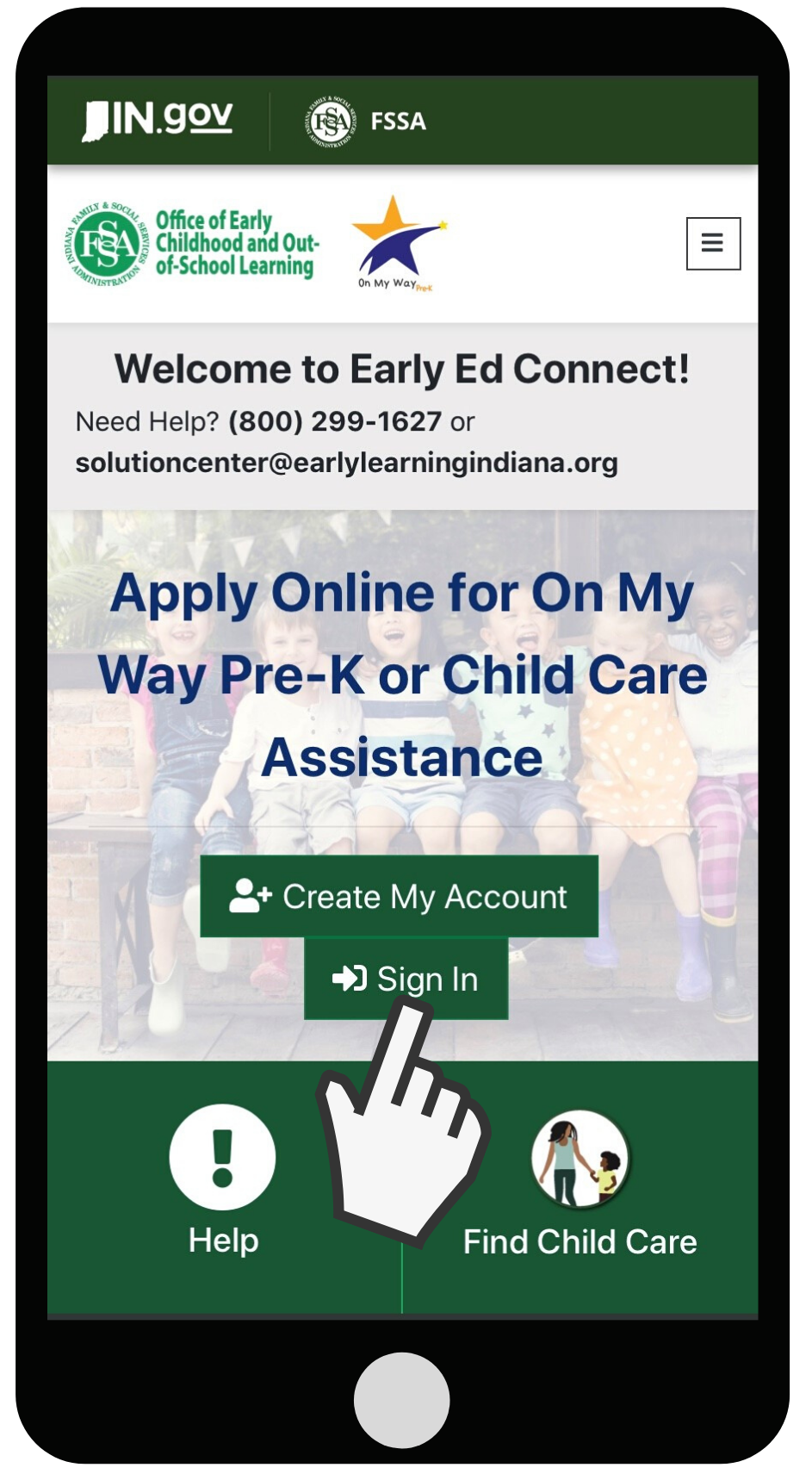
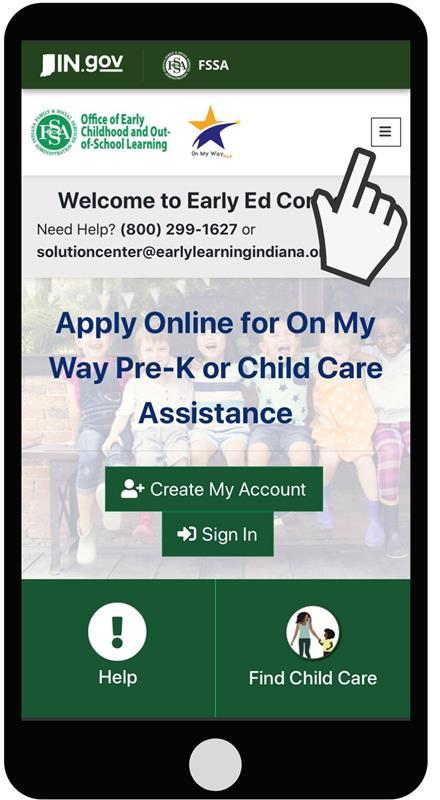
3. Click the white box at the top right of the screen.
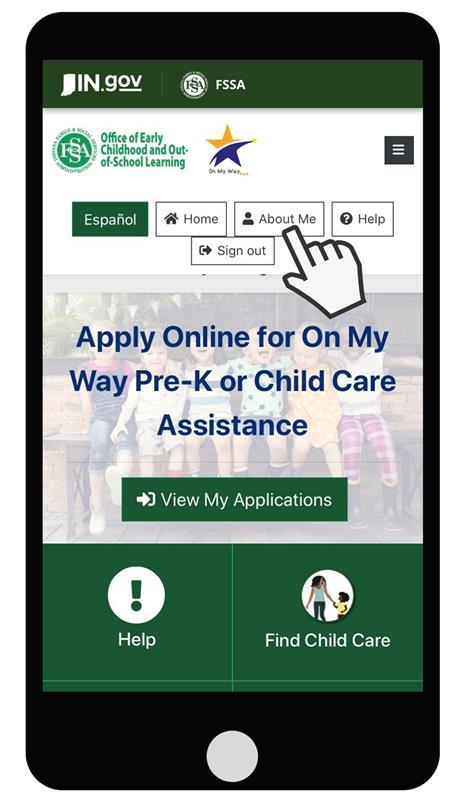
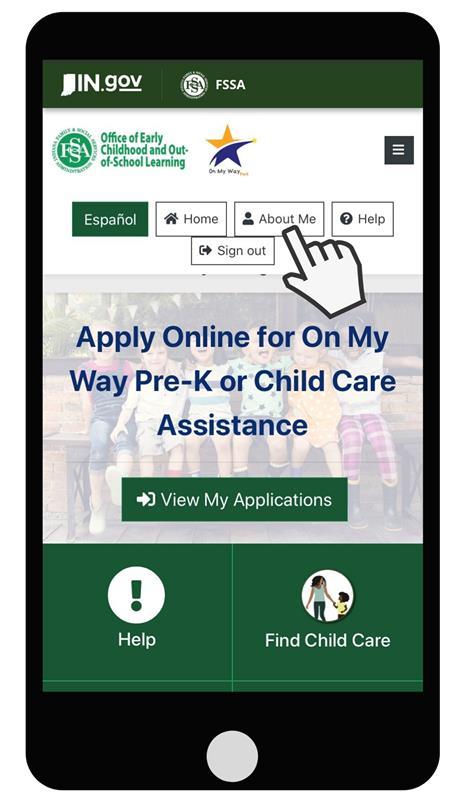
4. Locate and click the About Me button at the top middle of the screen.
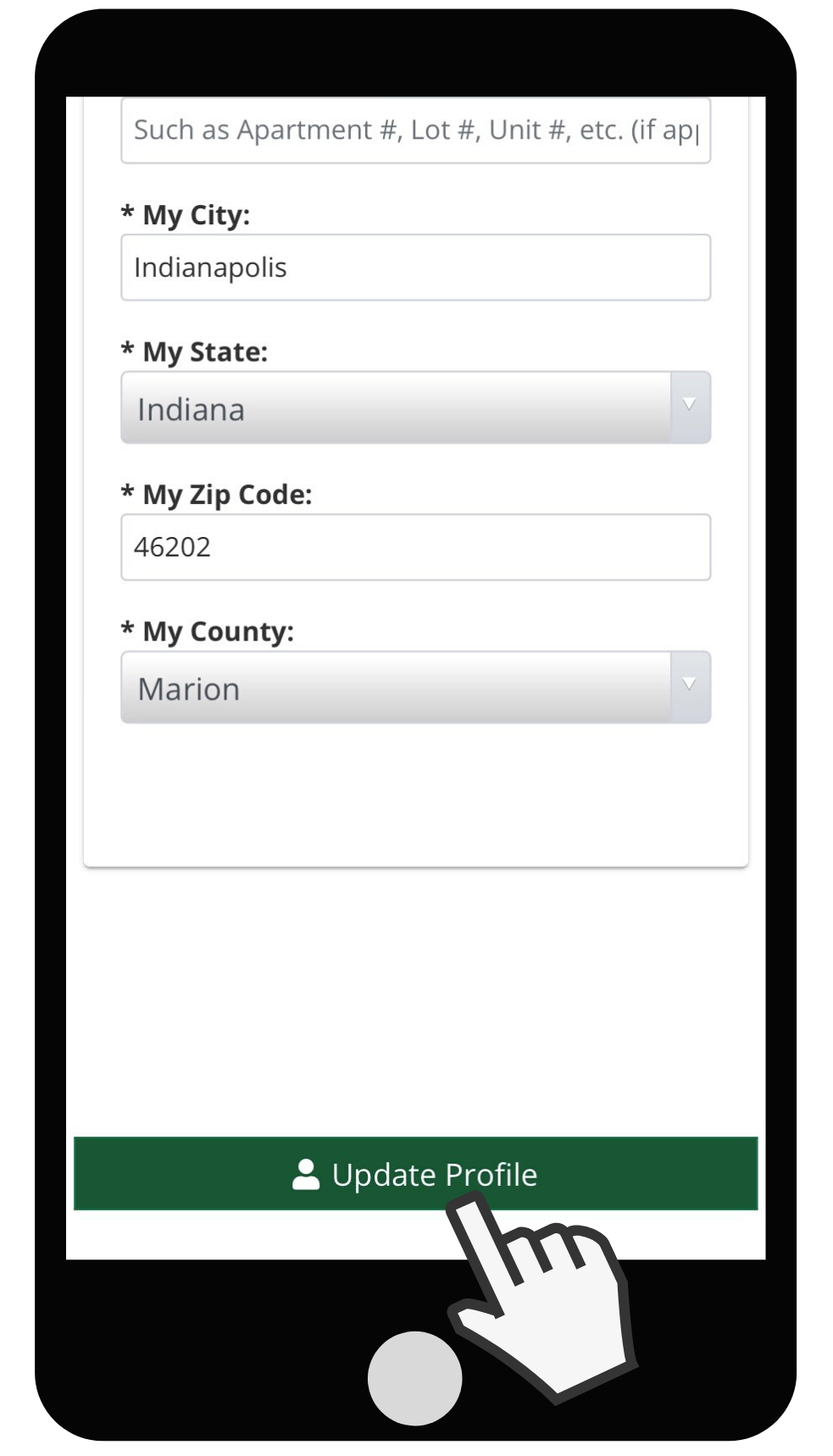
5. Once on the About Me screen, you can update your first and last name, email address, phone number and/or mailing address.
6. Click Update Profile to save your changes.
To update your Early Ed Connect profile from a computer, follow the steps below.
1. Go to EarlyEdConnect.FSSA.in.gov in any browser.
2. Click on the green Sign In button in the middle of the screen and enter your email and password. Click Sign In.
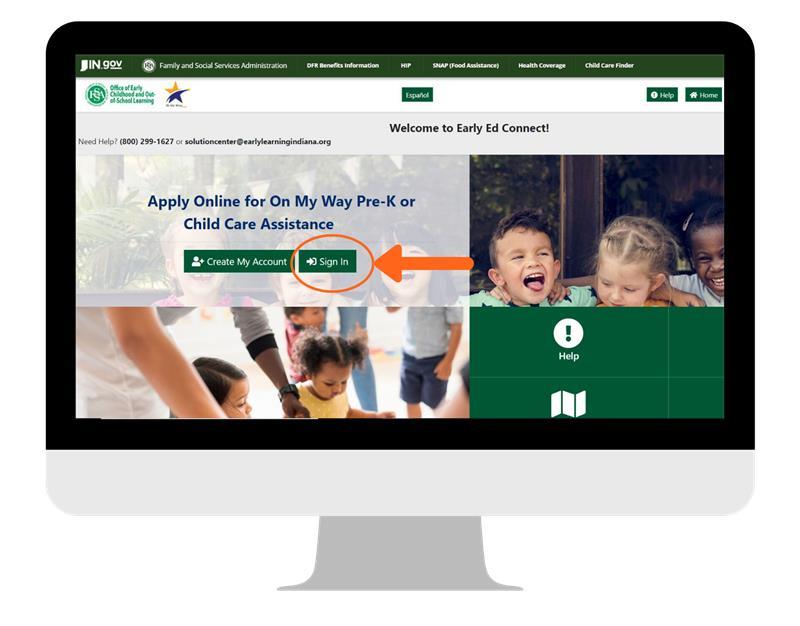
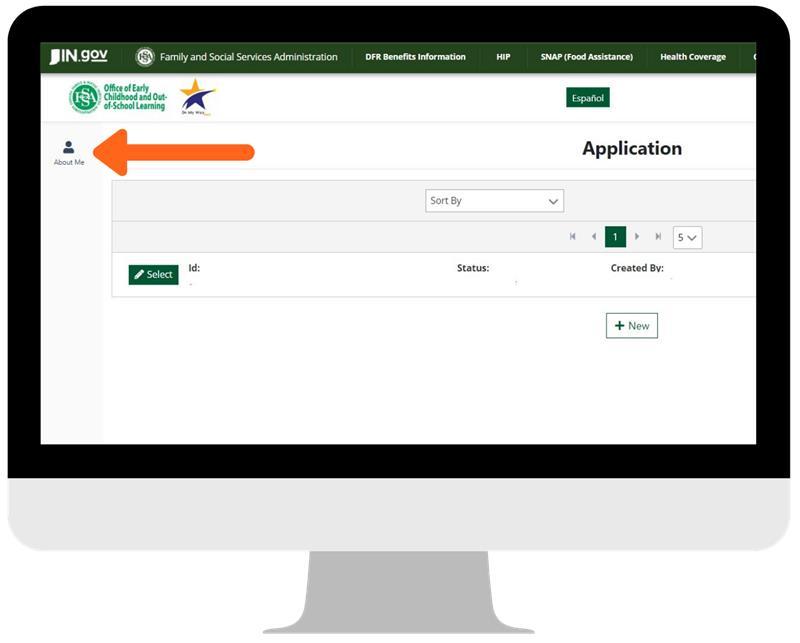
3. Locate and click the About Me button on the top left corner of the screen.
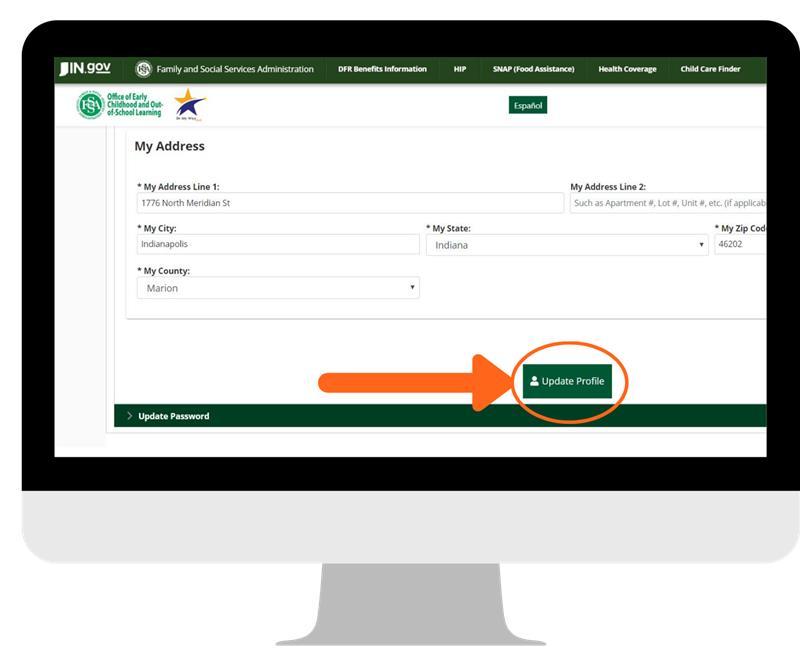
4. Once on the About Me screen, you can update your first and last name, email address, phone number or mailing address.
5. Click Update Profile to save your changes.
Updating Your Early Ed Connect Password
To update your Early Ed Connect password from a mobile device, follow the steps below.
1. Go to EarlyEdConnect.FSSA.in.gov in any browser.
2. Click on the green Sign In button in the middle of the screen and enter your email and password information. Click Sign In.
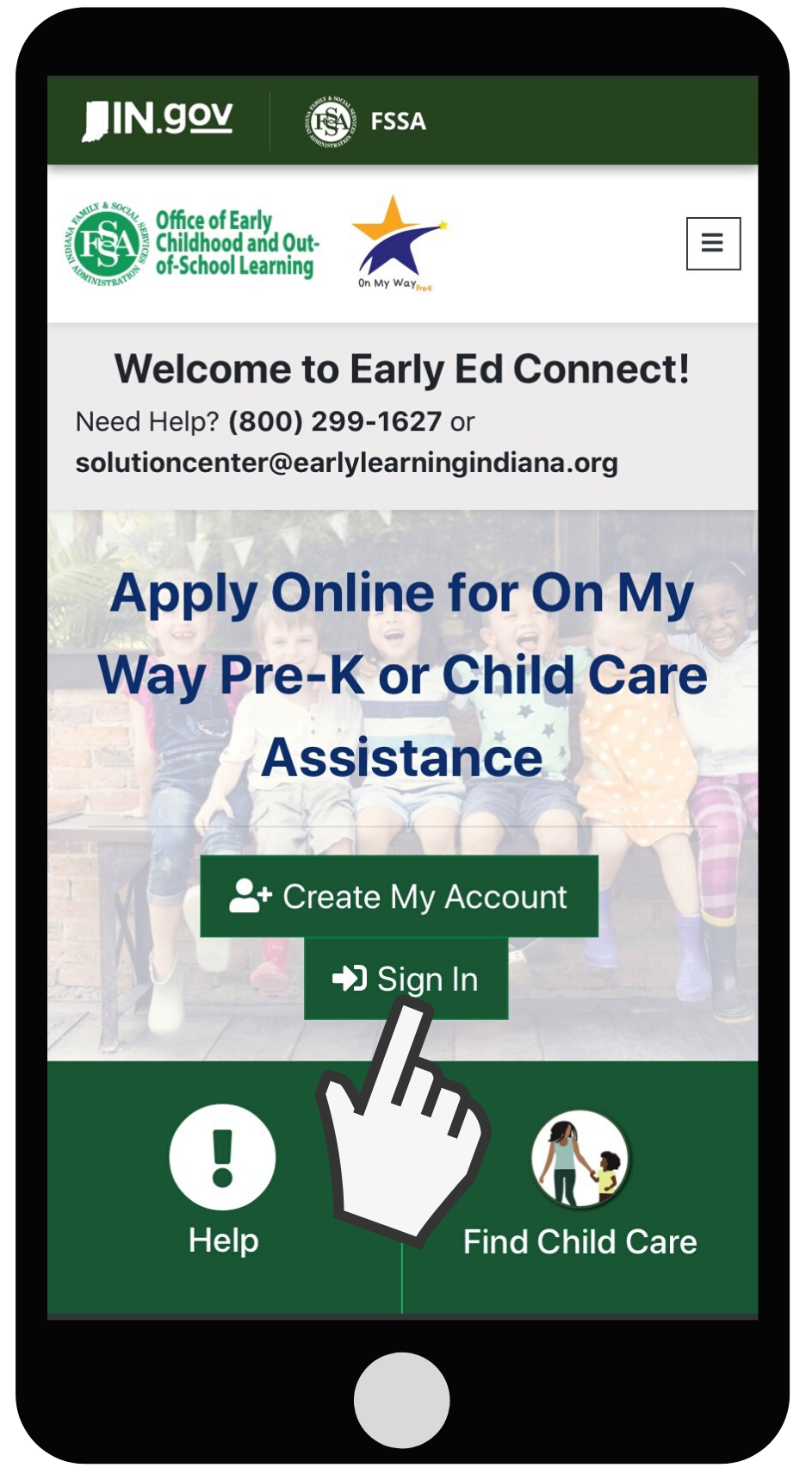
3. Click the white box at the top of the screen.
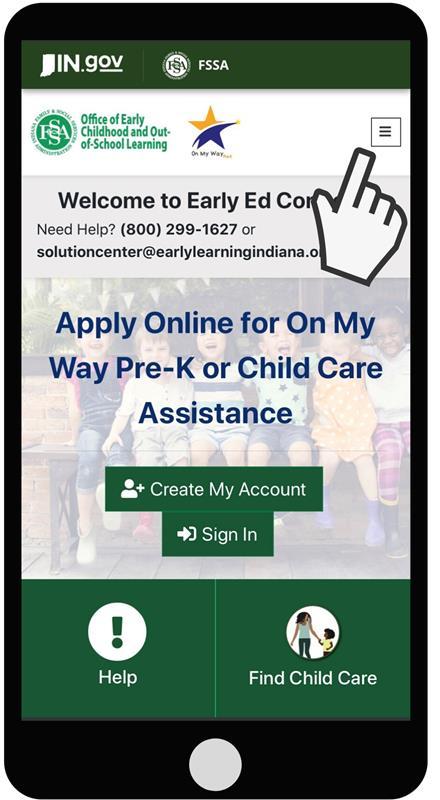
4. Locate and click the About Me button on the top left corner of the screen.
5. Scroll to the bottom of the screen and click on the green Update Password.
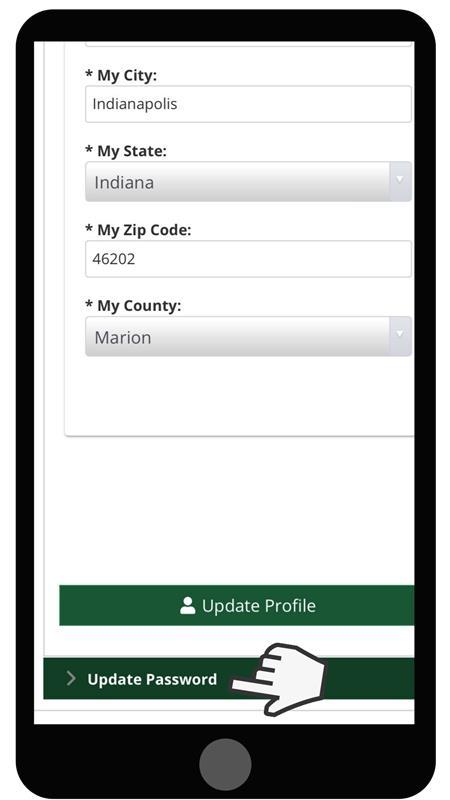
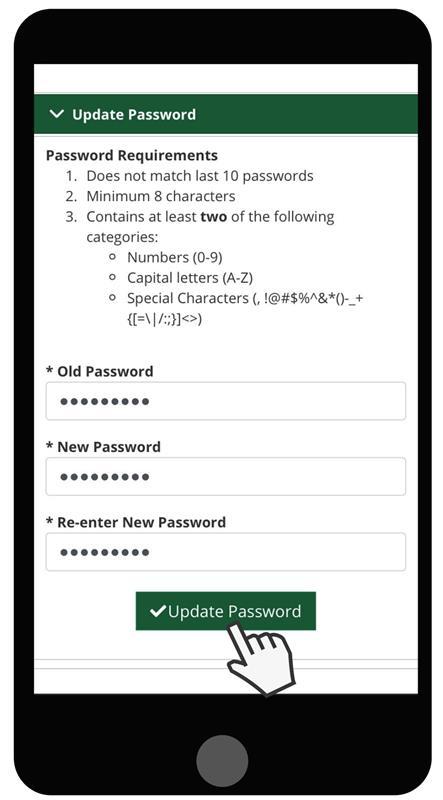
6. Once you have changed your password, click the green Update Password.
To update your Early Ed Connect password from a computer, follow the steps below.
1. Go to EarlyEdConnect.FSSA.in.gov in any browser.
2. Click on the green Sign In button in the middle of the screen and enter your email and password information. Click Sign In.
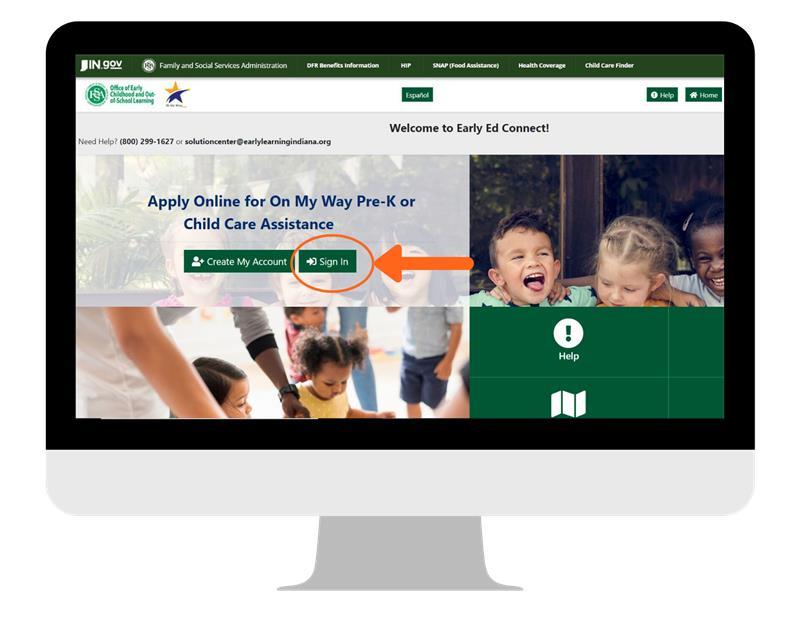
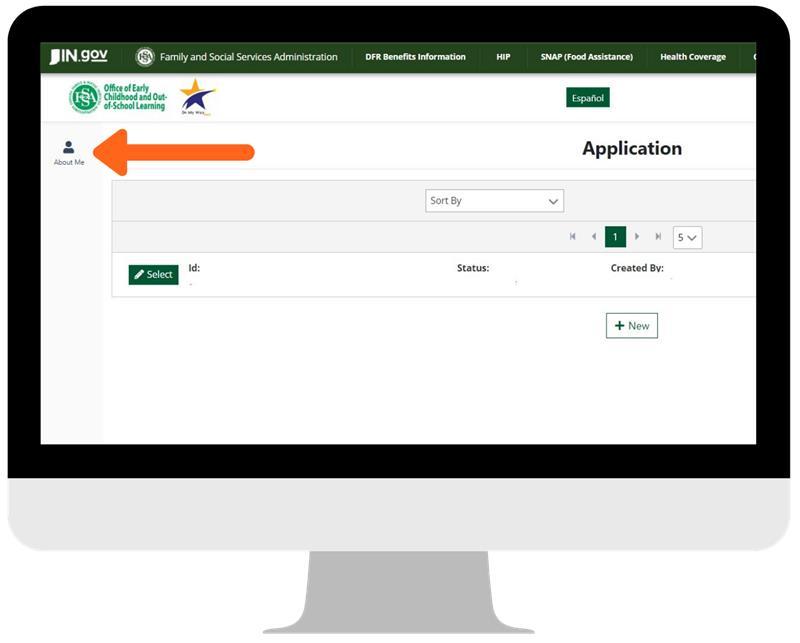
3. Locate and click the About Me button on the top left corner of the screen.
4. Scroll to the bottom of the screen and click on the green Update Password.
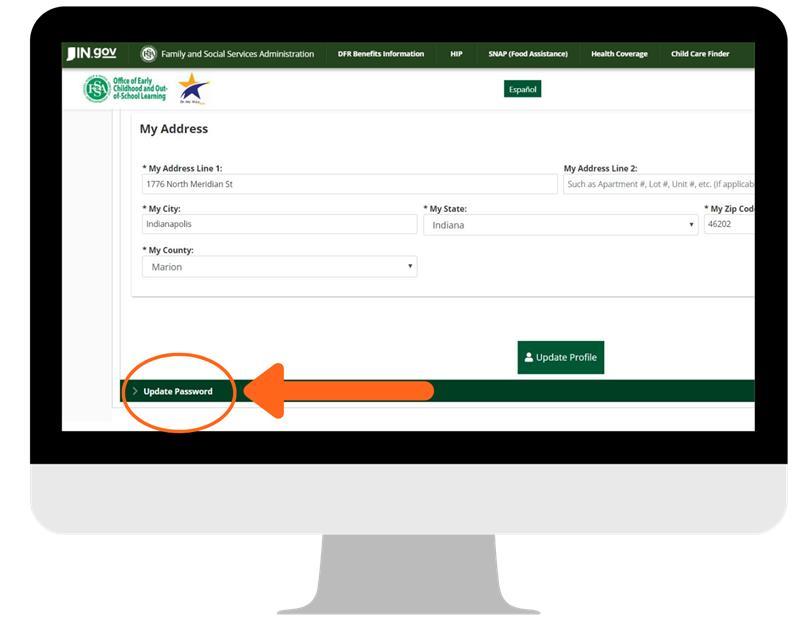
5. Once you have changed your password, click the green Update Password.
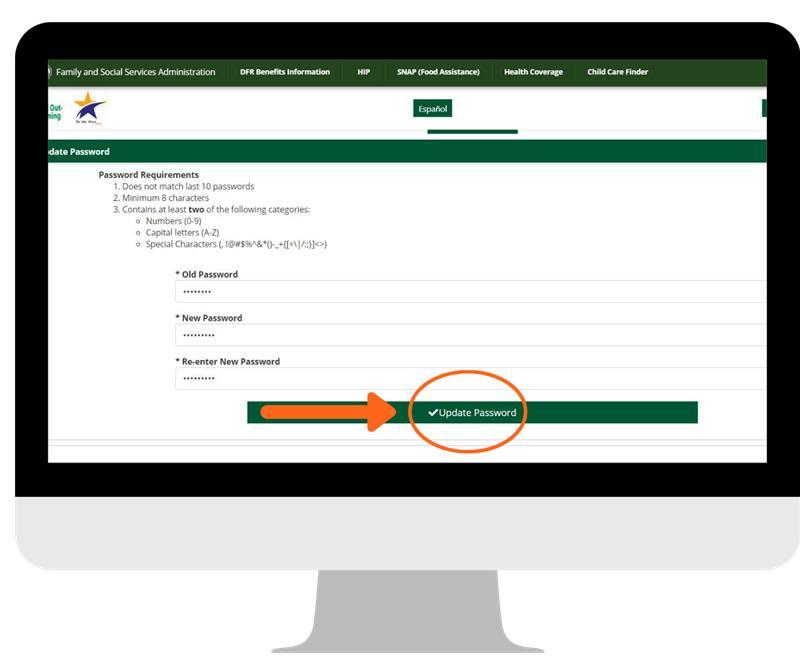
Passwords Must:
Use at least two of the types of characters below:
- Have eight or more characters
- Numbers (0-9)
- Capital letters (A-Z)
- Special characters, such as, @#$%^&*()-_+{[=\|/:;}]<>
If you forgot your email address or need further help with your account,
please contact Indiana 211 at 1-800-299-1627.