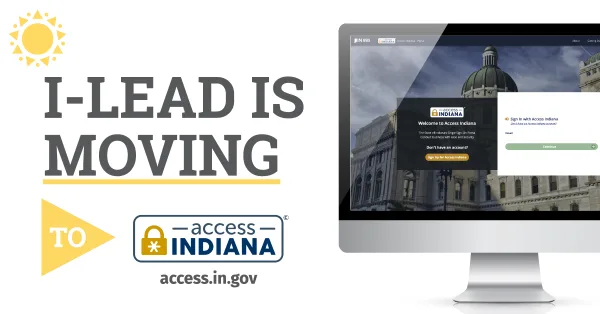
How to Accept a Provider Admin Invitation

Warning: Each I-LEAD user needs their own email that isn’t shared with anyone else. I-LEAD accounts aren’t meant to be shared or gifted as they contain personal information & training unique to that user. Failure to follow this rule could result in tangled accounts and incorrect data on consent forms that can't be reversed.

| You must first have or create an Access Indiana with the same email as the invite before accepting an admin invite. |
The article below will guide you through the process of accepting your emailed admin invitation to gain access to a specific license on the email listed. Only those who accepted an admin invite have the ability to send admin invites. Admin invitations should only be sent to managers, admins, pastors/religious leaders, and owners of a child care program. Please note those with multiple licenses should be sent an admin invite for all locations first before accepting the most recent invite. This way they only have to accept the most recent admin invite to be connected to all the licensing locations.
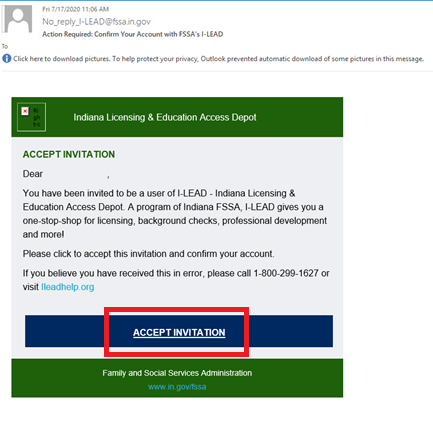
1.) New Provider Admins: Accept the invitation sent to your email. (It’s labeled as No_reply_I-LEAD@fssa.in.gov. It may be in the junk/spam folder if it’s not in the inbox.)
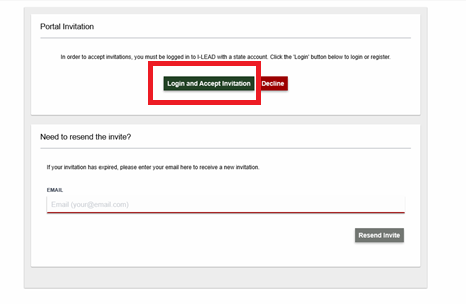
2.) Click Login and Accept Invitation.
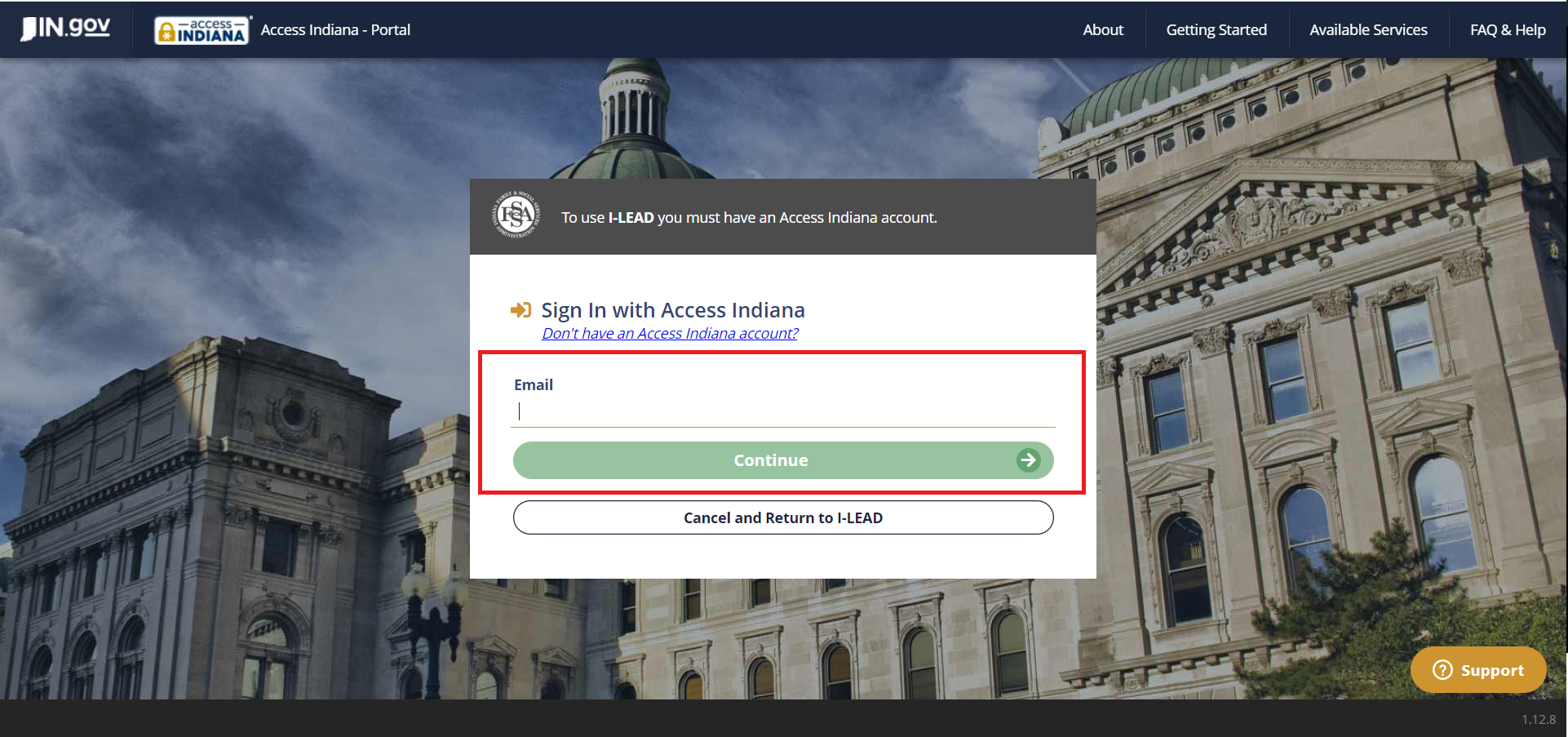
3.) Log into your Access Indiana account. (If you don't have an account with this email yet or get a message that you already have an account but don't recall the password, then use this step-by-step guide first. Then go back to step 1 to login from the educator invite.)
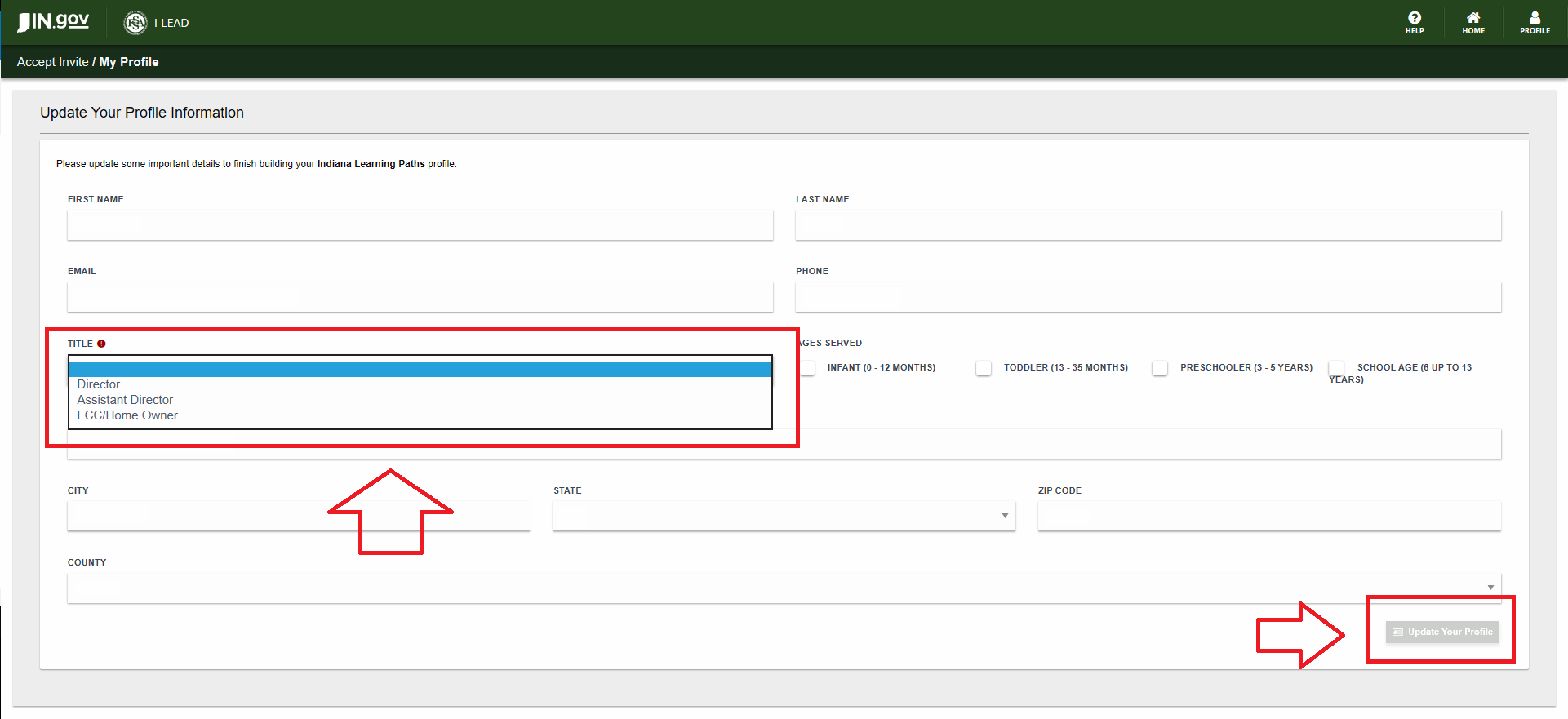
4.) Change your Title to reflect your admin role with the agency and click Update Your Profile (located at the bottom right of the screen). Fig. 4
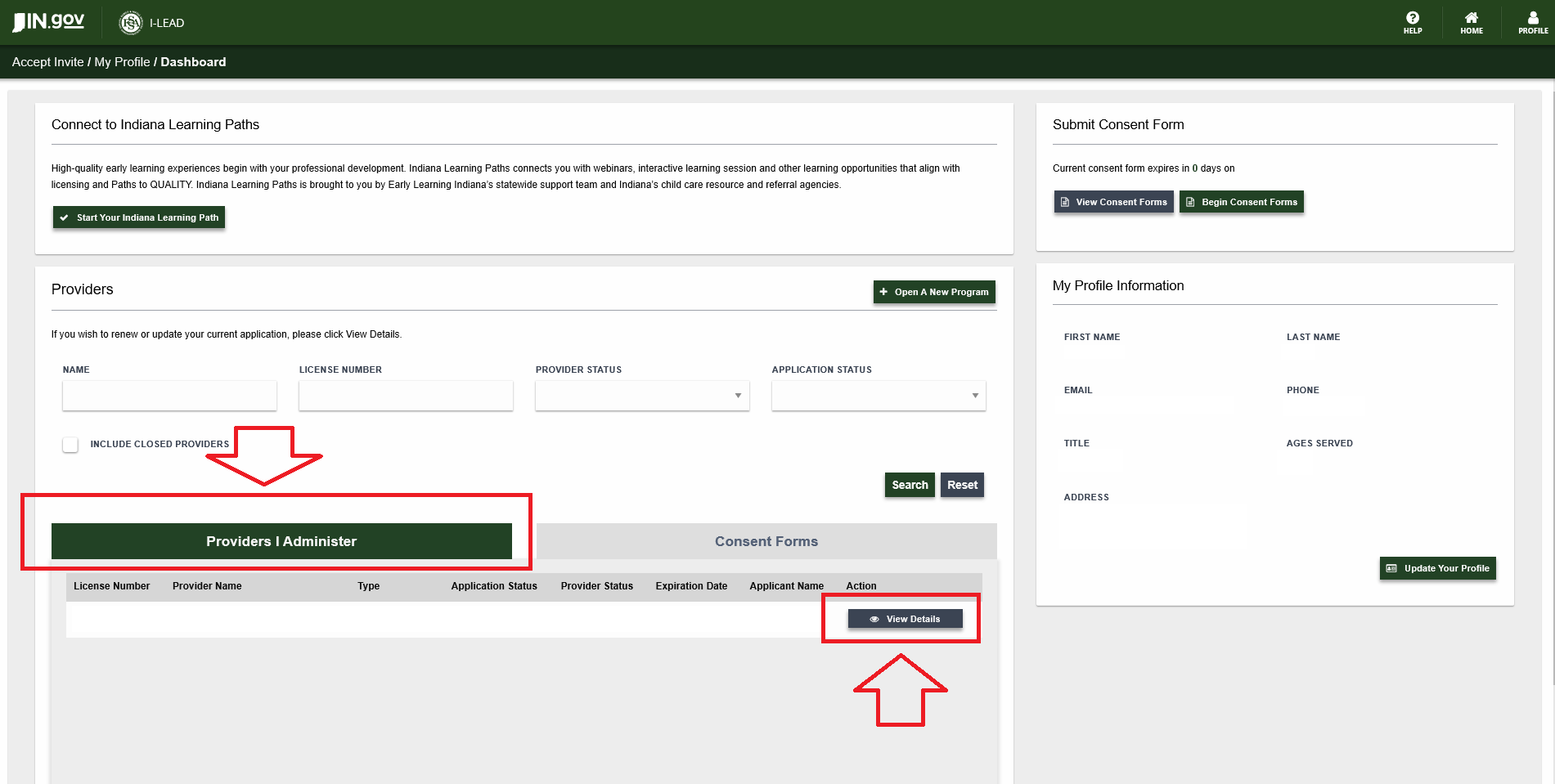
5.) If the admin invite is successful, a View Details button for the license will appear that will allow you to manage staff invitations and licensing paperwork for that child care site. A Providers I Administer tab will also appear next to the Consent Forms tab if your account is connected to your consent form.
The email you also used for the account will be listed in the "Provider Admins" section. There may be multiple emails for a person if they need access to a license via more than one account.
Should you have any additional questions, please call 1-800-299-1627 or visit brighterfuturesindiana.org/ilead to access additional help articles and contact support.